
360 Tour Guides
How to Create a 360° Virtual Tour for Your Website
Learn how to turn 360° panoramas into a virtual tour, connect rooms, add floor-plan navigation, and publish or embed it on your website.
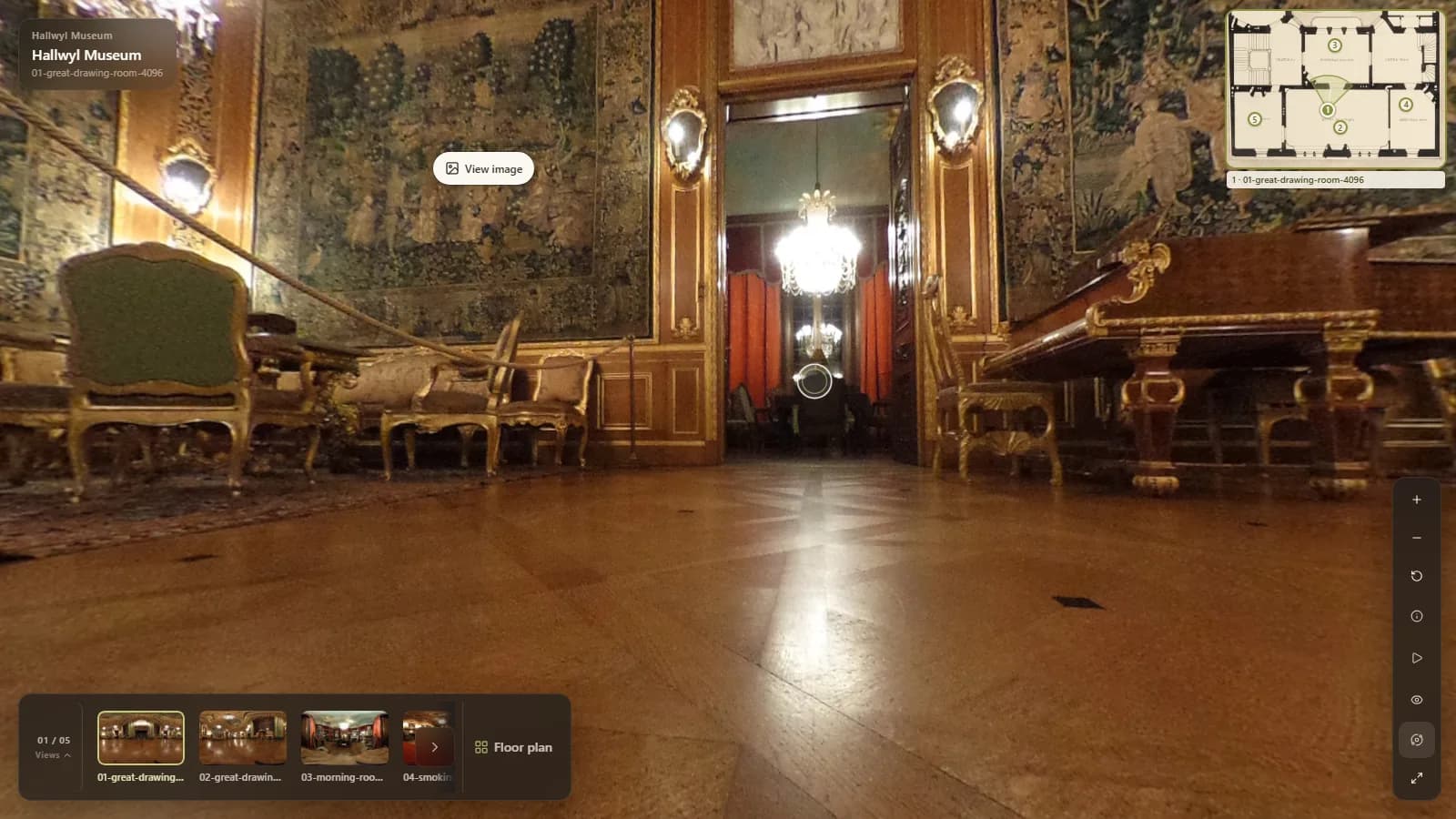
A photograph can show what a room looks like. A 360° virtual tour can help someone understand what it feels like to explore the space.
For property listings, hotels, event venues and digital platforms, that difference matters. Visitors often want to see how rooms connect, understand the layout and explore important areas before deciding what to do next.
The good news is that you don't need to build a custom virtual-tour viewer from scratch. With suitable 360° panoramas and a virtual tour builder, you can connect viewpoints, organise navigation and publish an experience that people can open in their browsers.
In this guide, we'll walk through the process from preparing your images to sharing or embedding the finished tour.
The short version: Prepare your panoramas → organise the spaces → connect viewpoints → add a floor plan if useful → test the experience → publish and share.
What is a 360° virtual tour?
A 360° panorama is an image captured from one viewpoint that allows a viewer to look around in different directions.
An interactive 360° virtual tour goes further. It connects multiple viewpoints so visitors can move between rooms or areas, often using navigation markers, room names or a floor plan.
Imagine exploring an apartment online.
With a single panorama, you can look around the living room. With an interactive tour, you can move from the living room into the kitchen, explore a bedroom and use a floor plan to understand where everything is located.
That makes a tour more useful than a collection of disconnected panoramic photographs.
A panorama-based tour is not automatically a 3D model or a digital twin. Those technologies may involve different capture methods, geometry and measurements. For many website experiences, connected 360° panoramas are a practical way to make a real space explorable.
What do you need to create a virtual tour?
You can start with three things.
1. Suitable 360° panoramas
You'll need panoramic images of the areas visitors should be able to explore.
These might come from a compatible 360° camera, a professional photographer or an existing collection of panoramic images. Check the requirements of your chosen tour builder before exporting or uploading them.
For a property, that might mean the entrance, living room, kitchen, bedrooms and outdoor spaces. For a hotel, it might include a guest room, lobby and shared facilities.
You don't need to capture every possible viewpoint. Focus on the places visitors genuinely want to understand.
If you don't have the images yet, explore ArchWalk's capture options.
2. A simple plan for moving through the space
Before building the tour, decide how visitors should navigate.
Think about the natural route through the property. Which room should they see first? Where should a doorway lead? Which viewpoints are essential?
A simple plan makes the tour easier to build and more intuitive to explore.
3. Virtual tour software
The software should let you organise panoramas, connect viewpoints and publish a usable experience.
If the tour will appear on your own website or inside another application, check the sharing and embedding options before committing to a platform.
ArchWalk 360 is designed for creating interactive experiences from panoramas, with connected navigation and floor-plan support.
How to create a 360° virtual tour: step by step
Step 1: Capture or collect your panoramas
Start with the best available images of your space.
Choose viewpoints that show each area clearly. In larger rooms, a central position can provide a useful overview. Near doorways or transitions, another viewpoint may help visitors understand where they are going next.
Pay attention to lighting, image sharpness and anything that might distract from the space.
Before uploading, check that the files meet your virtual tour platform's supported formats and size requirements.
Tip: Give files clear names such as
living-room,kitchenandmain-bedroom. A little organisation now makes the next steps easier.
Step 2: Organise the viewpoints into a journey
Think of the tour as a route, not simply a photo gallery.
For example:
Entrance → Living room → Kitchen → Hallway → Bedroom
This sequence gives visitors a logical way to move through the property.
For a hotel, the journey might start at reception and continue into a guest room and shared amenities. For an event venue, it could move from the entrance to the main hall and breakout areas.
Choose a starting viewpoint that immediately helps visitors understand the space.
Step 3: Upload and organise your panoramas
Next, bring your compatible images into a virtual tour builder.
In ArchWalk 360, panoramas form the visual foundation of the experience. Organise the scenes so that each viewpoint has a clear purpose.
Keep naming consistent. Visitors should be able to recognise where they are, and the person managing the tour should be able to find the right scene without guesswork.
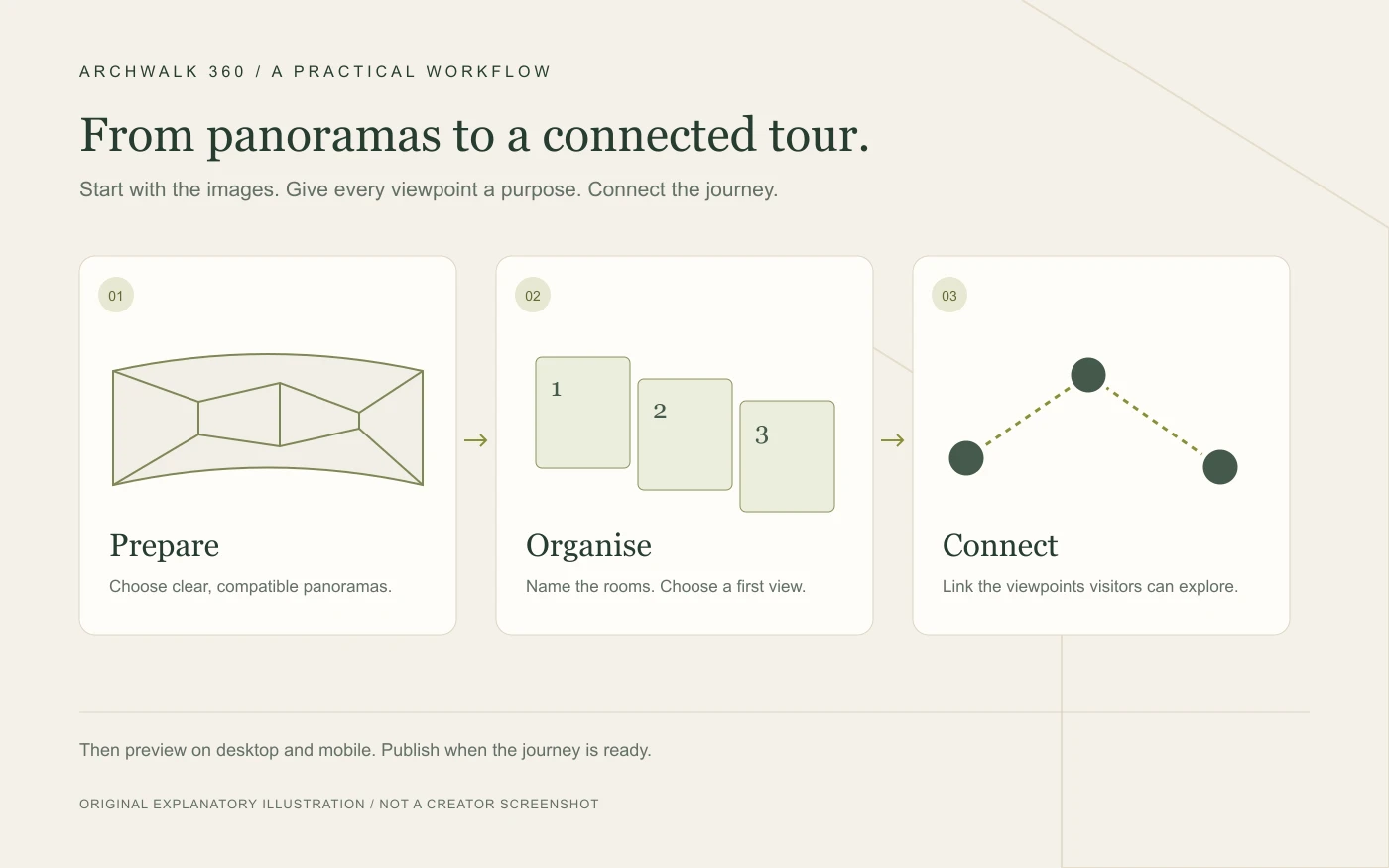
Original explanatory illustration by ArchWalk; not a screenshot of the Creator.
Step 4: Connect rooms and viewpoints
This is where separate panoramas become an interactive tour.
Create navigation between viewpoints that represent real movement through the space. A doorway from the living room should lead to the relevant next area, rather than an unrelated room.
Good navigation should feel predictable.
Try to avoid unnecessary connections that make the experience confusing. A visitor should be able to move forward, return to a previous space and understand how different areas relate.
For larger properties, thoughtful navigation matters just as much as image quality.
Step 5: Add floor-plan navigation when it helps
A floor plan gives visitors another way to understand the layout.
Instead of relying entirely on room-to-room navigation, they can see where viewpoints are located and move between important areas with more spatial context.
This is especially useful for properties with multiple rooms, hotel facilities, event venues or other spaces where orientation matters.
ArchWalk 360 supports floor-plan-based navigation as part of its interactive tour experience.
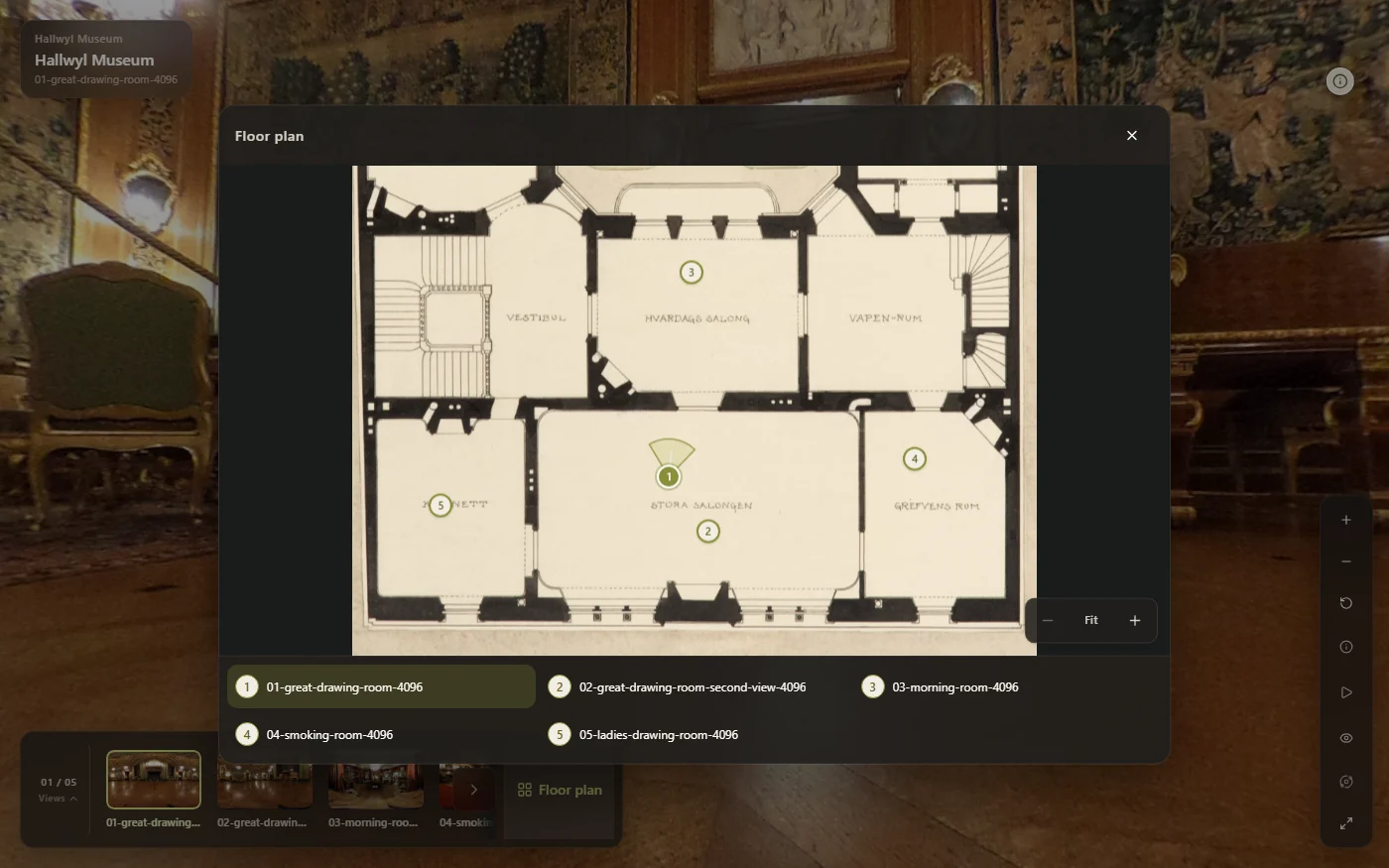
The published Viewer’s expanded floor plan. Numbered markers and the room guide identify the available viewpoints.
A floor plan should be easy to read and consistent with the actual space. Avoid adding visual complexity when a simpler navigation experience would work better.
Step 6: Preview the experience on desktop and mobile
Before publishing, explore the tour as if you're visiting the space for the first time.
Check whether the first scene is welcoming and informative. Move through every connection and confirm that each destination makes sense.
Then repeat the process on a phone.
Pay attention to loading behaviour, image clarity, touch controls, navigation visibility and the amount of screen space occupied by interface elements.
Also check the content itself. Remove accidental personal information, private documents or anything that should not be visible in a public tour.
A useful final test: Ask someone unfamiliar with the property to explore the tour without instructions. If they can move through the important areas naturally, your navigation is probably doing its job.
Step 7: Publish and share your virtual tour
Once the tour is ready, publish it using your platform's available sharing options.
A hosted tour link is useful when you want to send the experience directly to someone through email, messaging or a property listing.
For a website, an embedded tour can let visitors explore the space without leaving the page.
The right approach depends on where your audience will encounter the experience.
How to embed a 360° virtual tour on your website
Embedding places an interactive viewer inside an existing webpage.
For example, a property website could show a tour below its photo gallery. A hotel could include a tour on a room-detail page. A booking or property platform might integrate tours directly into its product experience.
Before embedding, consider the following:
- Placement: Put the tour where visitors are already evaluating the space.
- Screen size: Make sure the experience is usable on phones as well as desktop computers.
- Loading: Avoid letting a large interactive experience unnecessarily slow down the rest of the page.
- Context: Explain what the visitor can explore instead of dropping a viewer onto the page without an introduction.
- Compatibility: Follow the integration instructions for your chosen platform.
ArchWalk 360 supports sharing and embedded experiences. If you're integrating a tour into an application or website, review the ArchWalk 360 developer documentation for the current integration approach.
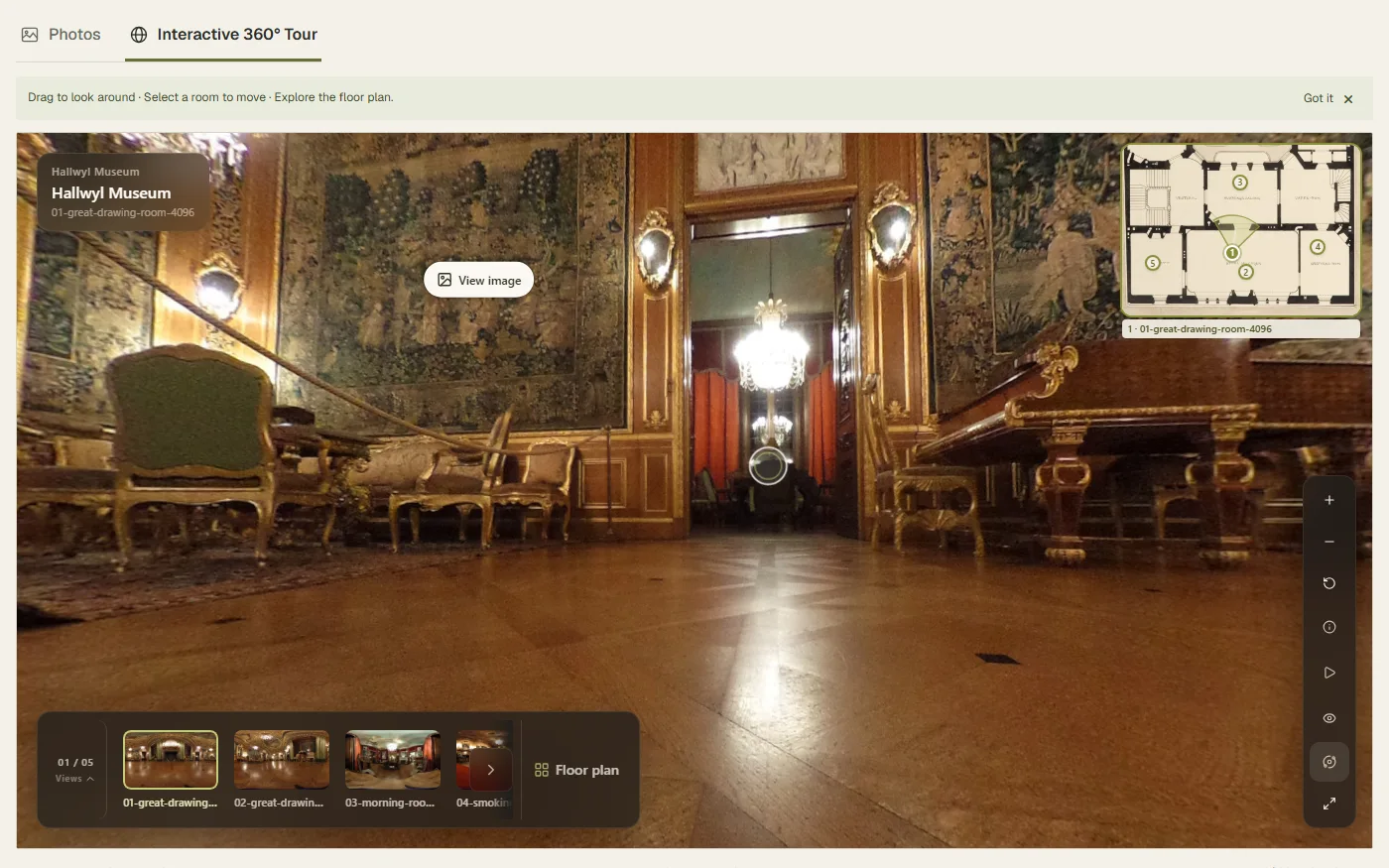
Genuine capture of the independent Hallwyl Museum demonstration website, with the interactive tour open in its gallery.
Where are 360° virtual tours most useful?
Real estate and property listings
A tour helps prospective buyers or renters explore the relationship between rooms before arranging an in-person visit.
It can provide useful context alongside photographs, floor plans and property descriptions.
Hotels and hospitality
Guests can explore room layouts, shared spaces and facilities before making a booking decision.
For hospitality teams, the goal is not to replace photographs but to give visitors a more complete sense of the property.
Event venues and commercial spaces
A virtual tour can help prospective customers understand entrances, circulation, seating areas and the overall layout.
This is valuable when people need to evaluate whether a venue suits their event or business needs.
Websites and software platforms
For property portals, hospitality software and other digital products, embedded tours can make spatial exploration part of the existing user experience.
Instead of sending visitors to an unrelated gallery, the experience can sit alongside the information they are already reviewing.
What should you look for in 360° virtual tour software?
Not every virtual tour platform works the same way.
When comparing options, focus on the experience you need to create rather than the longest possible feature list.
Panorama compatibility: Can you use the images you already have?
Navigation: Can visitors move between viewpoints naturally?
Floor plans: Can you add spatial context when the property needs it?
Publishing and sharing: Can people access the finished tour easily?
Website embedding: Can the experience fit into your existing website or application?
Mobile experience: Is the viewer comfortable to use on smaller screens?
Pricing and limits: Do the available plans fit your intended usage?
You can explore the ArchWalk 360 product and current pricing to see whether it suits your project.
Common mistakes to avoid
A good virtual tour doesn't need to be complicated. But a few common mistakes can make an otherwise attractive space frustrating to explore.
Too many repetitive viewpoints. More images do not automatically create a better experience. Prioritise meaningful locations.
Confusing navigation. Connect rooms in a way that reflects the actual layout.
Poor image quality. Inconsistent lighting, blurry details or distracting objects can reduce the usefulness of a tour.
Ignoring mobile visitors. Always check the experience on a phone before sharing it publicly.
Forgetting the surrounding page. A virtual tour works best when it complements clear descriptions, photographs and other useful information.
Frequently asked questions
Do I need a special camera to create a 360° virtual tour?
You need compatible panoramic images, but you do not necessarily need to own a camera yourself. You may already have suitable images, or you can arrange professional capture. Always check the platform's supported image requirements.
Can I create a tour from existing 360° photos?
Yes, provided the panoramas are compatible with your chosen tour software. The key step is organising and connecting them into an experience that visitors can navigate.
Can I add a virtual tour to my website?
Many virtual tour platforms provide sharing or embedding options. The exact implementation depends on the platform and your website. ArchWalk 360 supports embedded experiences; consult its developer documentation for integration details.
Is a 360° virtual tour the same as a 3D walkthrough?
Not necessarily. A panorama-based virtual tour connects 360° viewpoints. A 3D walkthrough or digital twin may involve a reconstructed 3D environment and different capture technology. The right option depends on what visitors need to see and understand.
Do I need a floor plan?
No. A floor plan is useful when it helps visitors understand the relationship between spaces. For a small, straightforward tour, simple viewpoint navigation may be enough.
Start building your first virtual tour
The best virtual tours are not necessarily the most complicated. They help visitors understand a space, move through it naturally and find the information they need.
Start with good panoramas. Plan the journey. Connect the viewpoints. Test the experience. Then publish it where your audience can actually use it.
If you already have 360° images, explore ArchWalk 360 to see how you can turn them into an interactive experience.
If you need photography first, view the available capture options.
Image credits
The hero, floor-plan and website images are genuine public ArchWalk Viewer captures of the independent Hallwyl Museum demonstration. Museum panorama photography: Jan Ainali, CC BY-SA 4.0. Source photographs: Panorama 1 · Panorama 2 · Panorama 3 · Panorama 4. Captures have been resized and compressed as WebP; the photography and its adaptations remain available under CC BY-SA 4.0.
Floor-plan drawing: Hallwyl Museum / Jenny Bergensten, public domain. The workflow diagram is an original ArchWalk illustration. This is an independent demonstration, not an official Hallwyl Museum website or endorsement.
Want to see a working example? Explore our live interactive 360° demo.